Streamlining Transaction Reviews with the Copilot Approvals Agent in Dynamics 365 Project Operations
For project-driven organizations, review workflows are essential to maintain accurate billing and cost tracking. However, as project managers and supervisors struggle to review countless daily submissions - including time, expense and material transactions - approvals can quickly become a bottleneck. Important details can get lost, leading to errors, downstream billing corrections and delays.
To solve this challenge, Microsoft provides the Approvals Agent (production-ready preview) in Dynamics 365 Project Operations. Powered by a Microsoft Copilot Studio agent, it performs an initial review of time, expense and material submissions against policy documents configured by the organization, identifying entries that are ready for approval and those that need further review.
As per official Microsoft Learn documentation, the Approvals Agent features are available for:
- Project Operations Integrated with ERP
- Project Operations Core
Understanding the Approvals Agent
Unlike traditional assistive AI models that only respond to user-triggered requests, the Approvals Agent performs an initial review of submitted transactions. Once enabled and configured, time, expense and material records enter a classification queue and are evaluated against applicable organization-wide or project-specific policy documents.
By checking items against these policy files, the agent simplifies workflows by sorting records into two main categories:
Ready for approval: Entries that meet the configured policy criteria.
Needs review: Entries that don't meet the configured policy criteria and require further review.
An administrator can upload standard policy criteria, such as "Any weekday time entries over 10 hours or weekend bookings without pre-approval need review."
- If a consultant logs 8 hours on a Tuesday, the AI can match it against the policy and mark it Ready for approval.
- If a consultant logs 12 hours on a Tuesday, the AI can identify the exception and mark it Needs review.
- The classification helps project managers focus their attention on exceptions and reduces the risk of mistaken approvals.
How the Validation Flow Works
The validation and classification flow occurs seamlessly after transaction submission, ensuring policy-aligned data routing before a supervisor begins their final review.

Step-by-Step Configuration Guide
System administrators can enable and configure the Approvals Agent using the Power Platform admin center and the Agent Deployment Wizard. The wizard consolidates the setup steps into a guided experience:
Sign in to the Power Platform admin center with an admin user. Go to Copilot > Dynamics 365 (or open the Agent Deployment Tool), select the target environment and select Add next to the Approvals Agent to launch the setup wizard.
Enter the user ID that will act as the agent. Ensure the selected user has the required licenses and security roles. Then create the required connection references by selecting Create (+) for each connection and using the same agent user account.
Select Activate flows to activate the Approvals Agent trigger flow. Then open the agent in Microsoft Copilot Studio, verify that it is published and complete the wizard.
Upload policy documents for time, expense and material submissions. These policies define the criteria the agent uses during classification. Organizations can also attach policy documents to individual projects; when a project-specific policy exists for an entry type, it takes precedence over the organization-wide policy for that type.
Project Operations provides two operating modes for the Approvals Agent:
- Classify: Records marked Ready for approval still require manual approval by the project manager.
- Classify and auto approve: Records marked Ready for approval are automatically processed for approval. Microsoft recommends thoroughly testing the agent before using this mode.
- Organizations can also control which projects the agent reviews using the Use approvals agent to review entries project setting.
- The Automatically use approvals agent for new projects option can set the default for newly created projects.
In addition to organization-wide policy documents, administrators can attach time, expense and material policy documents to individual projects. When a project has a policy document for a particular entry type, the agent uses that project-level policy instead of the organization-wide policy for that type. If no applicable policy document exists, the agent doesn't classify that type of approval record.
Interacting with Classified Transactions
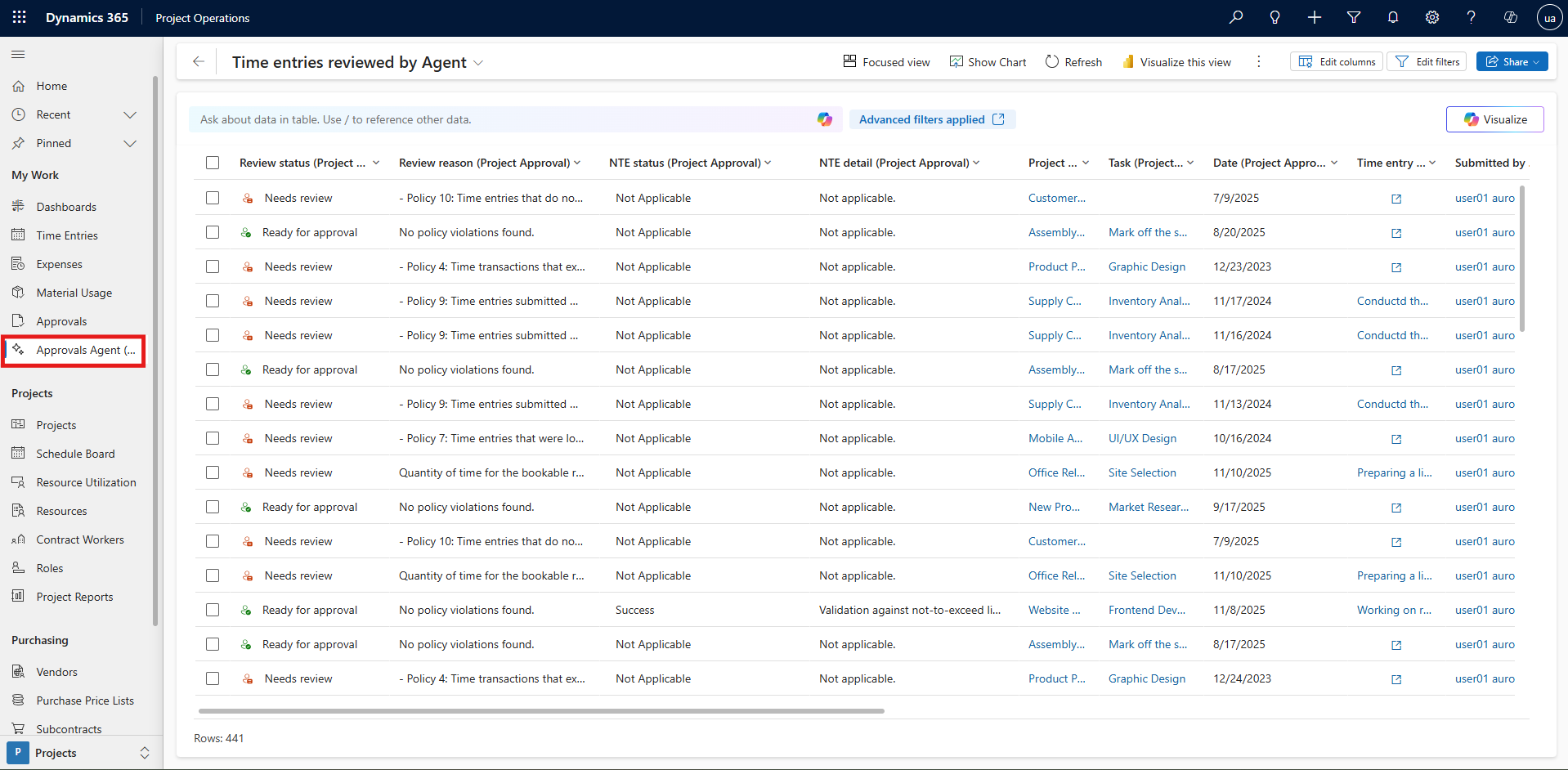
Once the agent is active, submitted time, expense or material records enter a classification queue. In Project Operations, managers can open the Time entries reviewed by Agent page under Approvals Agent in the left pane to review classified records and take key actions:
Processes the selected record for approval.
Sends a submission back to the user with an required comment, making it easy to fix errors early.
Returns the selected record to the agent's queue for reevaluation, for example after a policy document has been updated.
Architecture & Business Impact
Using the Approvals Agent can help organizations streamline transaction review:
- Proactive Review: Simplifies workflow by having the AI automatically review standard items, freeing managers to focus on exceptions.
- Policy Integration: Enables managers to run automatic audit checks without manual calculations, saving time and effort.
- Fewer Corrections: Identifies non-compliant submissions early, avoiding incorrect approvals and downstream adjustments.
Using an automated review process with standard policy files helps maintain accuracy without complicating manager review workflows.
Final Thoughts
Activating the Approvals Agent is a straightforward way to streamline review workflows in Dynamics 365 Project Operations. By utilizing standard natural language policies to filter incoming entries, organisations can keep operations moving smoothly while catching exceptions early.
Modernize your approval process: use AI-assisted policy classification to reduce manual review bottlenecks while keeping approval decisions under control.