Accelerating Project Setup: Importing Tasks into a Project in Dynamics 365 Project Operations (Preview)
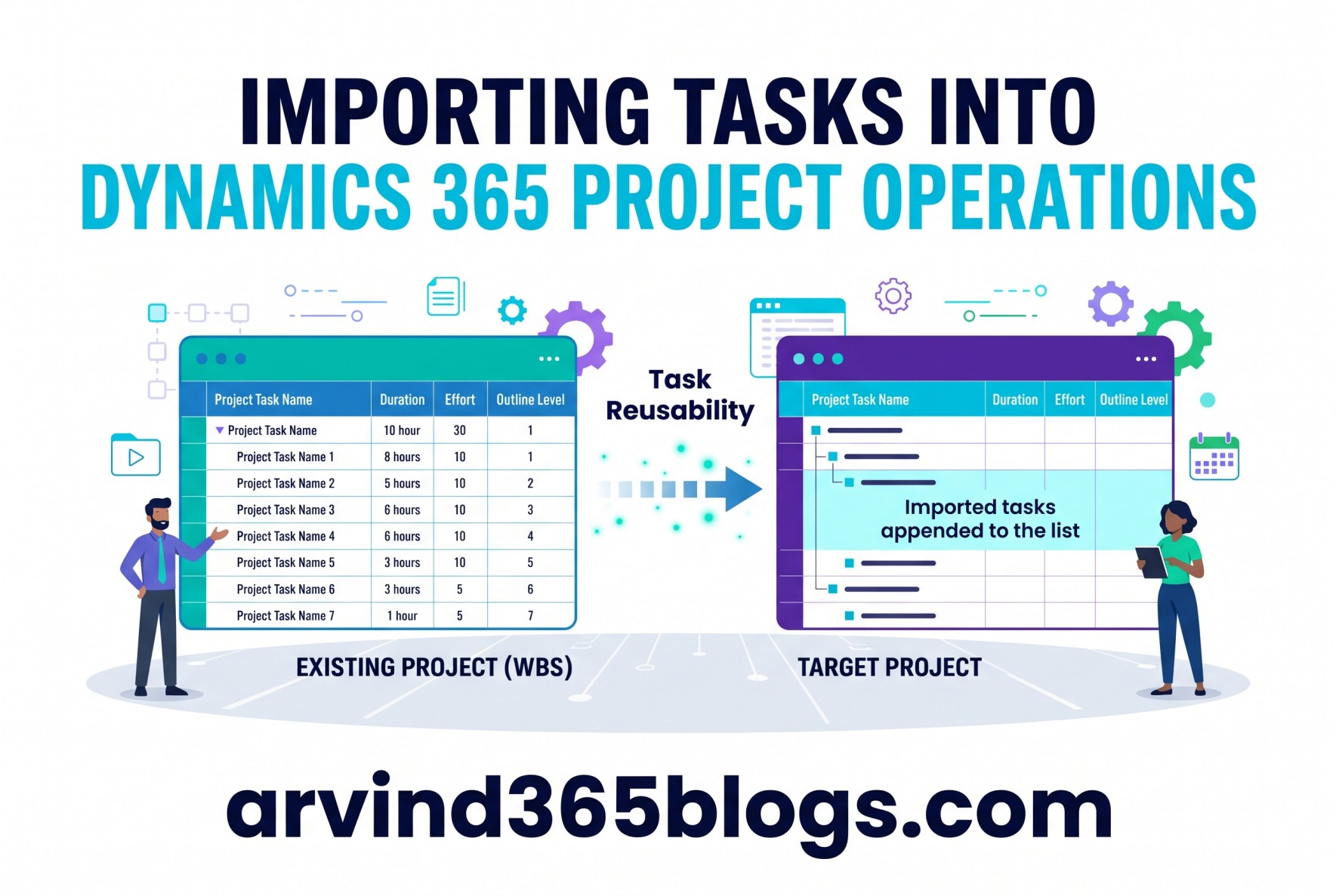
When initiating new delivery engagements, project managers frequently find themselves building Work Breakdown Structures (WBS) that share common deliverables with past projects. Previously, project managers often had to copy an entire project or manually recreate the required Work Breakdown Structure (WBS). The new Import Tasks capability offers a more flexible alternative by allowing selective reuse of tasks from existing projects.
Microsoft introduces a native solution with the Import Tasks into a Project (Preview) capability. Designed for selective flexibility, this feature allows project managers to reuse tasks from one or more existing projects that they already have access to, quickly assembling a tailored WBS without the overhead of full-project duplication.
Per official Microsoft Learn technical documentation, this feature applies to:
- Project Operations Integrated with ERP
- Project Operations Core
Import Tasks into a Project is currently documented as a Preview feature. Its functionality and availability may change as Microsoft continues to evolve Dynamics 365 Project Operations. Refer to the latest Microsoft Learn documentation for updates.
Why This Differs from "Copy Project"
The Import Tasks feature provides greater flexibility when reusing project task structures compared with copying an entire project.
Selective Task Reuse: Import all tasks or select specific tasks from an existing project.
Multi-Source Aggregation: Import tasks from one or more projects into a single target project.
Supports Existing WBS: Unlike Copy Project, the target project does not need to have an empty WBS. Imported tasks can be appended to a project that already contains an existing work breakdown structure.
Step-by-Step: How to Import Tasks
The import workflow is integrated directly into the project command ribbon:
Open the destination project record where you want to add or expand the task structure.
From the project ribbon at the top of the form, select Import tasks.
Pick the source project containing the deliverables or task sequences you want to reuse (you must have access permissions to the source project).
Select all or specific tasks from the source list and select Add to complete the import. The selected tasks are immediately appended to your target project's task list.
What Data Gets Imported?
When tasks are imported, Project Operations copies the documented task attributes and custom columns defined in the source view:
| Display Name | Schema Name / Details |
|---|---|
| Project Task Name | msdyn_subject |
| Notes | msdyn_description |
| Duration | msdyn_duration |
| Effort | msdyn_Effort |
| Outline Level | msdyn_OutlineLevel |
| Link Status | msdyn_LinkStatus |
| Parent Task | msdyn_parenttask |
| Copy View Columns | Custom columns defined in the view |
The import process copies all imported tasks under the default bucket of the target project.
Key Takeaways
The Import tasks into a project capability delivers a practical middle ground for project managers in Dynamics 365 Project Operations. By combining modular task selection with the ability to append to existing project structures, teams can standardize their delivery practices, save valuable setup time and minimize duplicate data entry.
Speed up project onboarding: reuse proven task structures across projects, preserve custom view columns and assemble comprehensive work breakdown structures in minutes.