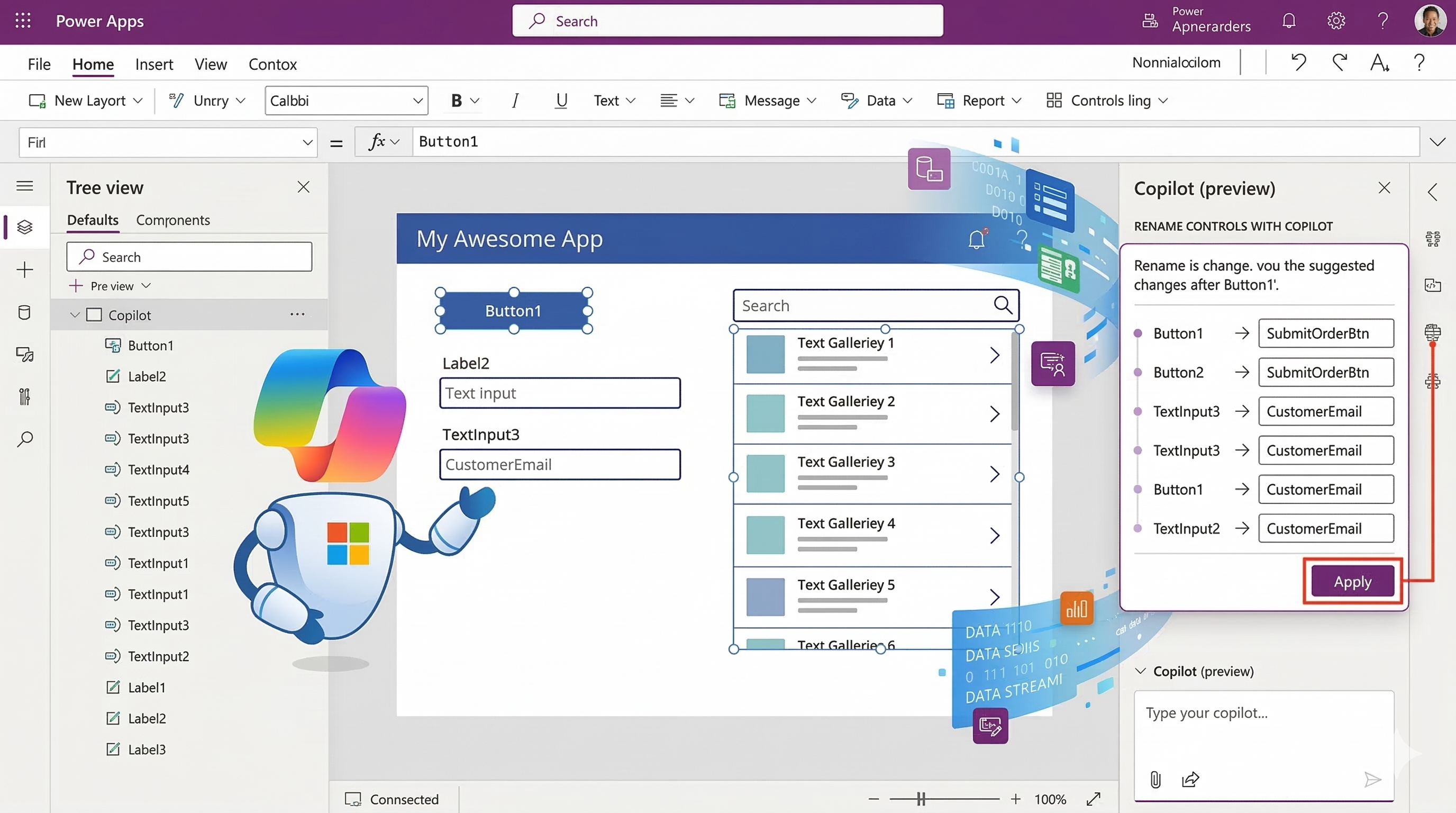
Use Copilot to automatically generate meaningful control names in Power Apps Canvas Apps
March 15, 2026 | Power Platform | 8 min read
Rename Controls in Power Apps Canvas Apps Using Copilot (preview)
When building applications in Power Apps Canvas Apps, developers often work with dozens of controls like buttons, labels, galleries and text inputs. By default, Power Apps assigns names such as Button1, Label2 or TextInput3.
While these default names work during initial development, they can make formulas harder to read and apps more difficult to maintain over time.
Microsoft has introduced a helpful AI-powered capability called Copilot Rename Controls. This feature automatically suggests meaningful names for controls based on their properties and context, helping developers maintain clean and readable apps with much less manual effort.
Why Control Naming Matters
Control names are used across formulas, logic and screen interactions. When controls have meaningful names, developers can understand app behavior much faster.
For example:
- Button1 tells us very little.
- btnSubmitOrder clearly explains the purpose.
Good naming conventions help with:
- Improving formula readability
- Faster debugging
- Easier collaboration with other developers
- Long-term app maintainability
However, renaming every control manually can be time-consuming. This is where Copilot helps automate the process.
What is Copilot Rename Controls?
Copilot Rename Controls is a preview feature in Power Apps that uses AI to suggest better names for controls in Canvas Apps.
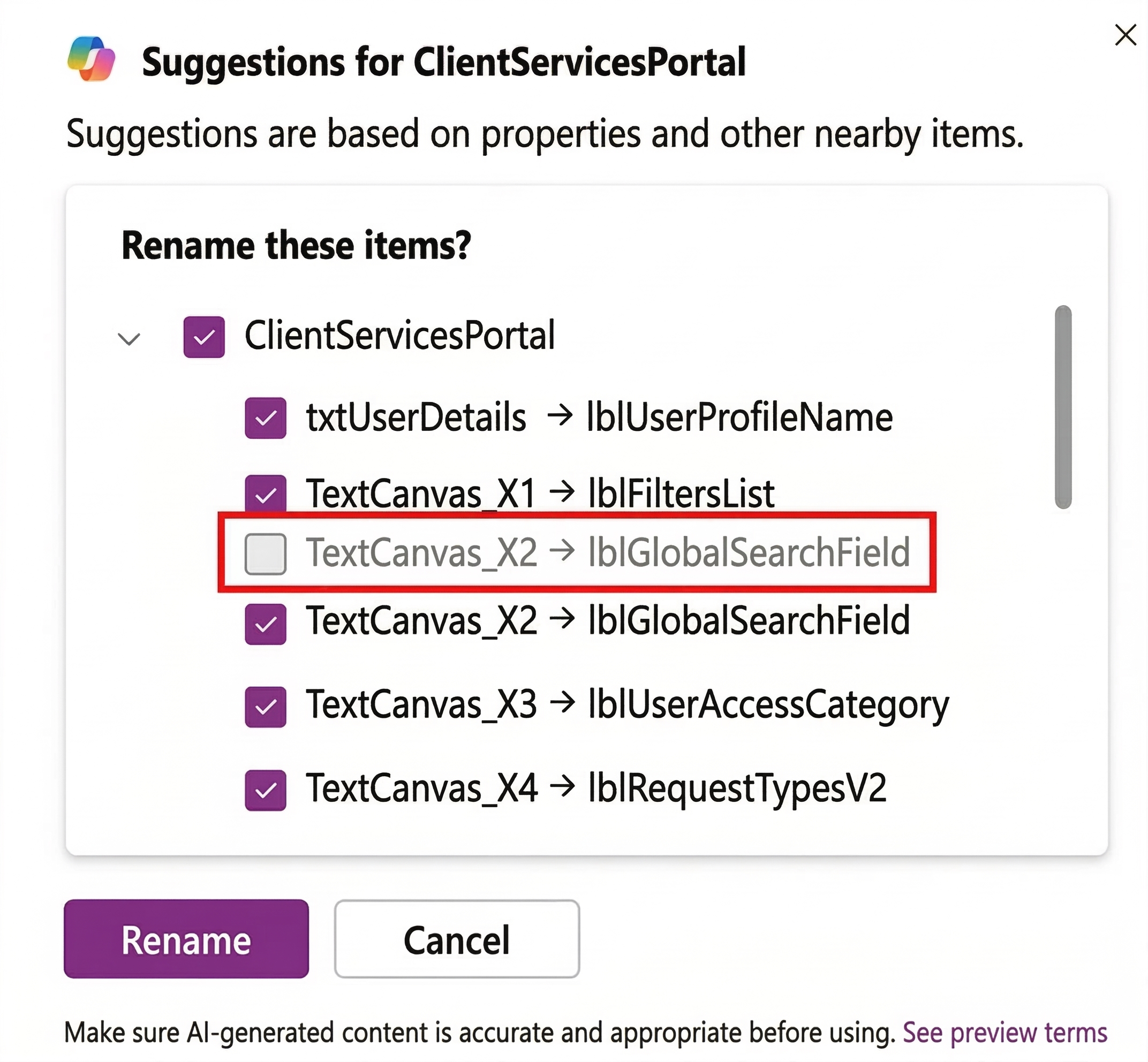
When a developer renames one control manually, Copilot analyzes similar controls on the screen and generates suggested names for them.
This allows you to rename multiple controls at once while maintaining a consistent naming pattern.
Key capabilities include:
- Automatically suggesting descriptive control names
- Renaming multiple controls in one action
- Maintaining consistent naming conventions
- Updating formulas automatically when controls are renamed
Prerequisites
Before using this feature, make sure the required preview settings are enabled.
- Open Power Apps Studio.
- Go to Settings.
- Select Updates.
- Enable the following preview features:
- Proactive Control Rename
- New Analysis Engine
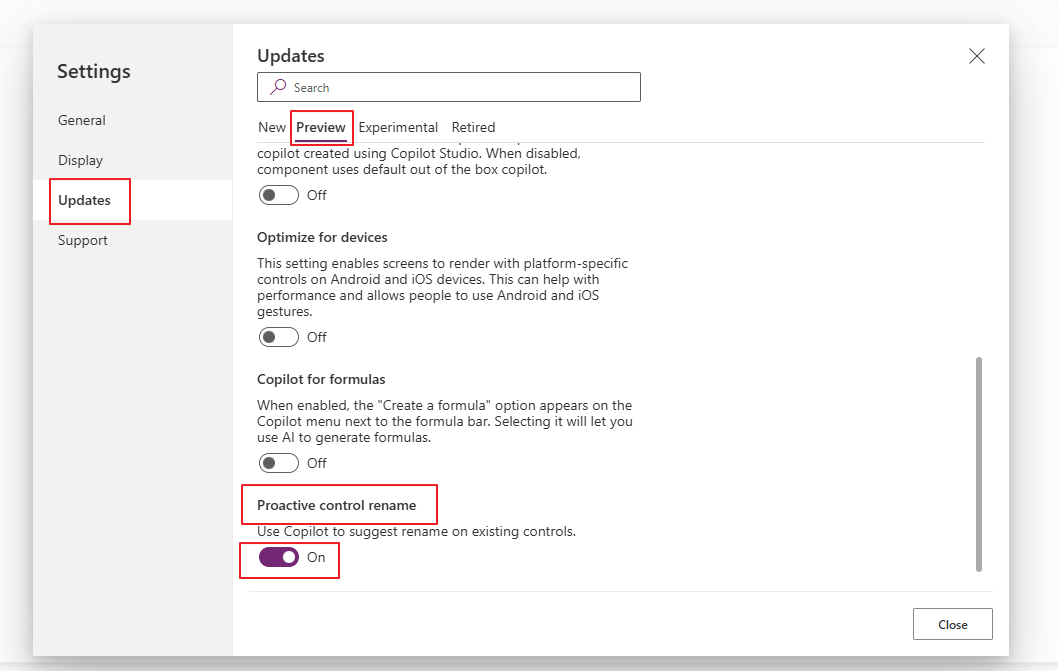
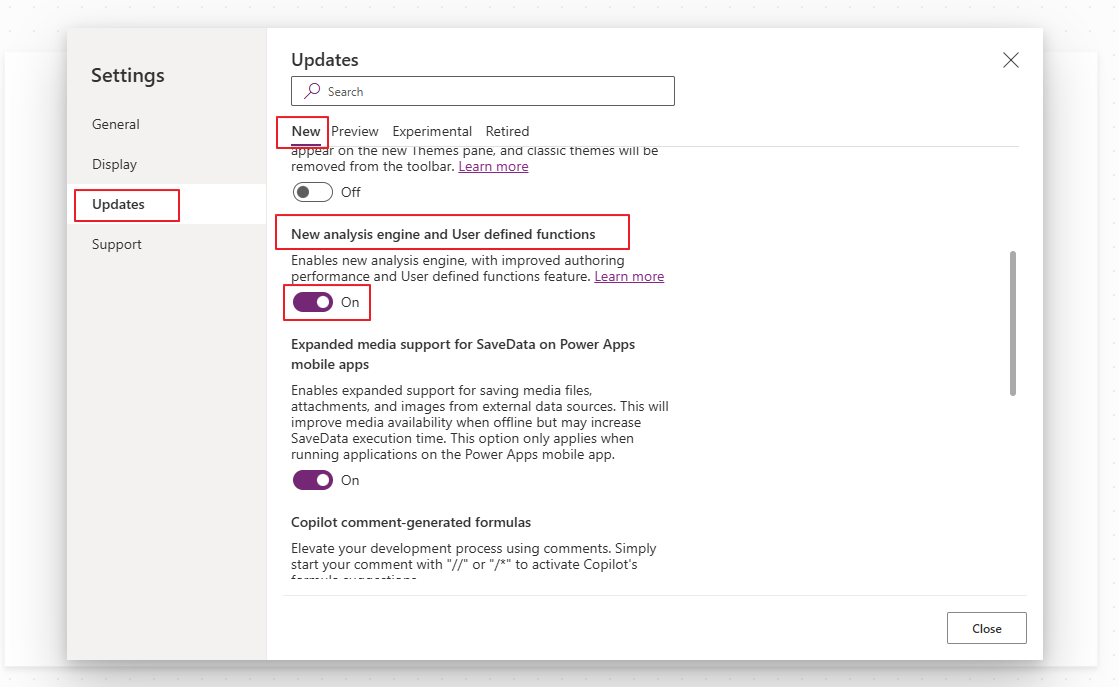
Once enabled, Copilot will start suggesting names when controls are renamed.
Important: The Copilot Rename Controls capability is currently a preview feature. Preview features may change and might not yet be available in all environments or regions.
Before using this feature, make sure that:
- Your environment meets the Copilot prerequisites.
- The feature is supported in your Power Apps region.
- Copilot is enabled according to the guidance in Copilot in Power Apps overview (preview).
If Copilot features are not enabled or available in your region, the rename suggestions may not appear in Power Apps Studio.
How to Rename Controls Using Copilot
Follow these steps to rename controls using Copilot.
- Open your Canvas App in Power Apps Studio.
- Go to the Tree View and select a control such as a button or label.
- Click the More options ( ... ) menu and select Rename.
- Rename the control manually using a meaningful name.
Example:
Button1 → btnSubmitOrder
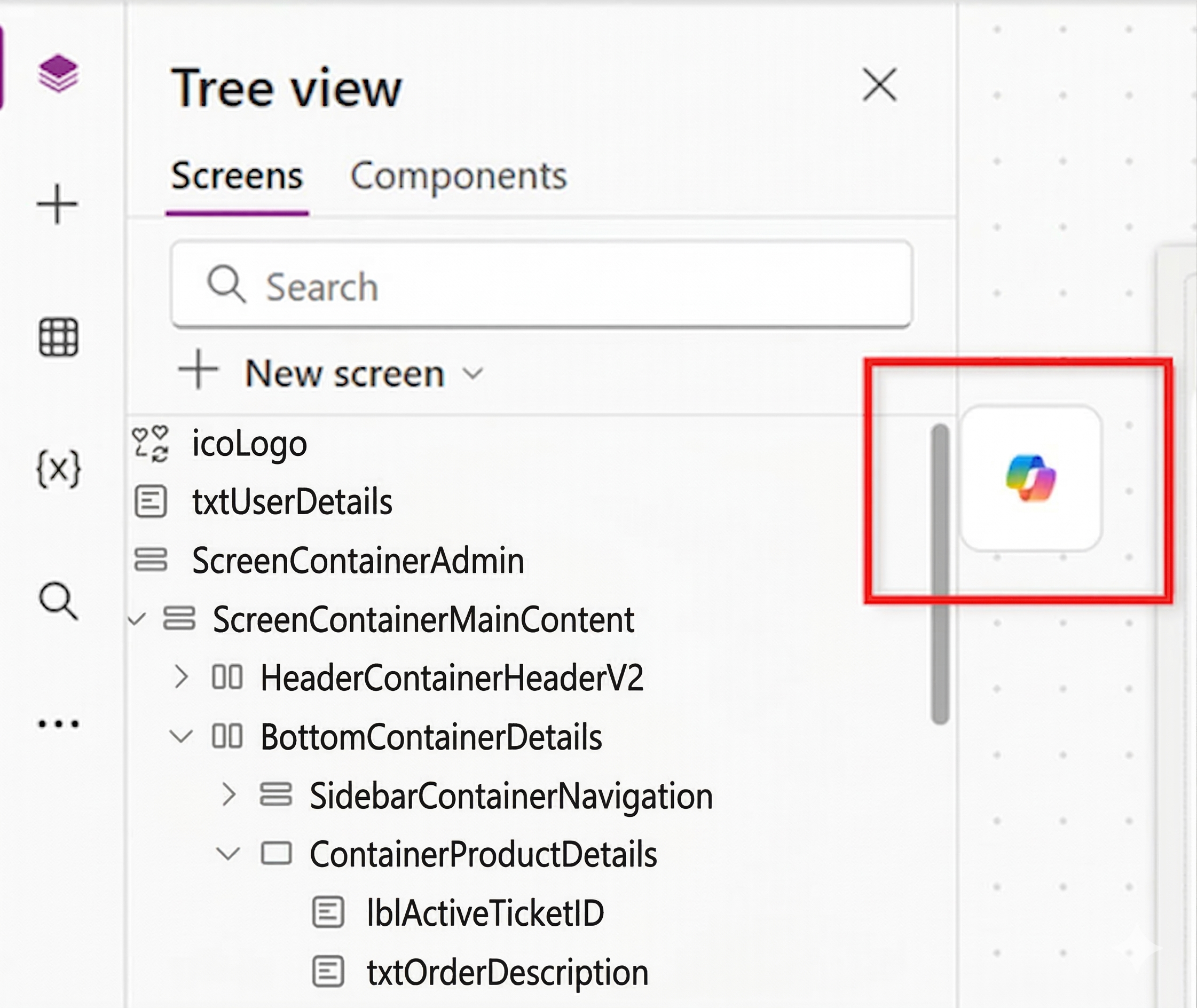
You can then:
- Review the suggestions
- Accept all suggested names
- Remove specific suggestions
- Select Rename to apply the changes.
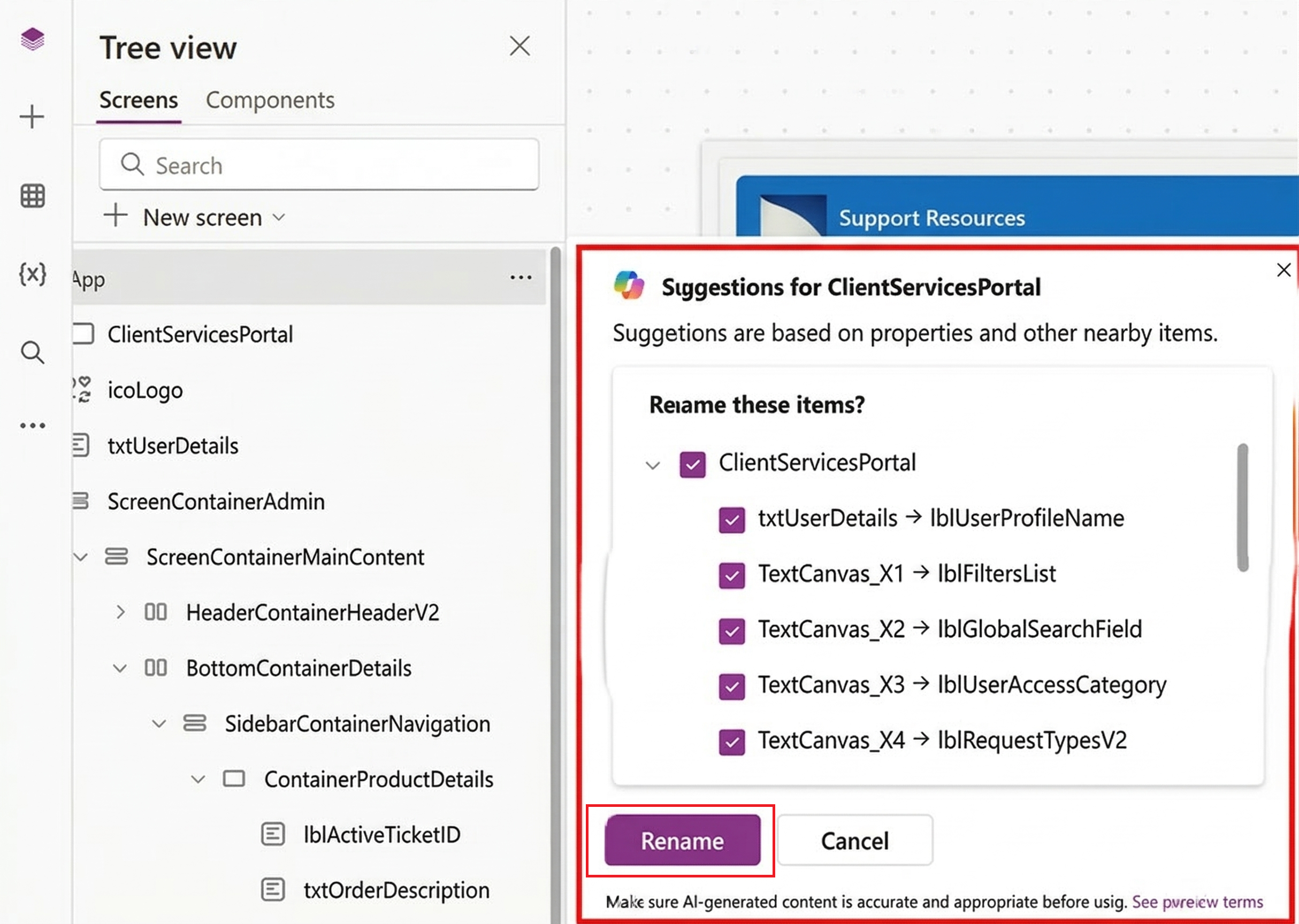
Once confirmed, Power Apps automatically updates any formulas referencing those controls.
Example Scenario
Imagine a screen with the following buttons:
- Button1 - Submit
- Button2 - Cancel
- Button3 - Save
If you rename:
Button1 → btnSubmit
Copilot may suggest:
- Button2 → btnCancel
- Button3 → btnSave
Instead of renaming each control individually, you can apply all suggestions instantly.
Best Practices for Using Copilot Rename
To get better naming suggestions, follow these best practices:
-
Set meaningful Text properties
Copilot uses the control’s text value to understand its purpose. -
Avoid default values
Controls with default text like "Button" or "Label" may not generate useful suggestions. -
Use consistent prefixes
Examples include:- btnSubmit
- lblCustomerName
- txtEmail
-
Avoid spaces and special characters
Use camelCase or prefixes instead.
Current Limitations
Since this feature is currently in preview, there are some limitations.
- Currently supports mainly Button and Label controls.
- Works best when controls have meaningful Text properties.
- Available only in English.
- Suggestions work primarily for controls on the same screen.
Benefits of Using Copilot for Control Renaming
| Benefit | Description |
|---|---|
| Faster Development | Rename multiple controls automatically instead of manually updating each one. |
| Better Readability | Clear naming makes formulas easier to understand. |
| Improved Collaboration | Teams can easily understand app structure and control purpose. |
| Reduced Errors | Power Apps automatically updates formulas when controls are renamed. |
Conclusion
The Copilot Rename Controls feature in Power Apps is a powerful productivity tool for developers building Canvas Apps.
By automatically suggesting meaningful control names, it helps reduce manual effort, improve formula readability and maintain consistent naming conventions across applications.
As Microsoft continues expanding Copilot capabilities in Power Platform, features like this will play a major role in making low-code development faster, smarter and easier to maintain.